SY DEV LABS
Tutorial GuideFolder CategoriesShareable CodesOne-Click In-Game LaunchZero Hassle

How to Organize Roblox Games into Custom Playlists

Tired of hunting through an endless favorites list to find that one horror game you played three months ago? Discover how to create organized folders, genre categories, and shareable playlist codes on PC.

Get TopBlox Playlist Manager (Free)
Windows 10 / 11 Compatible
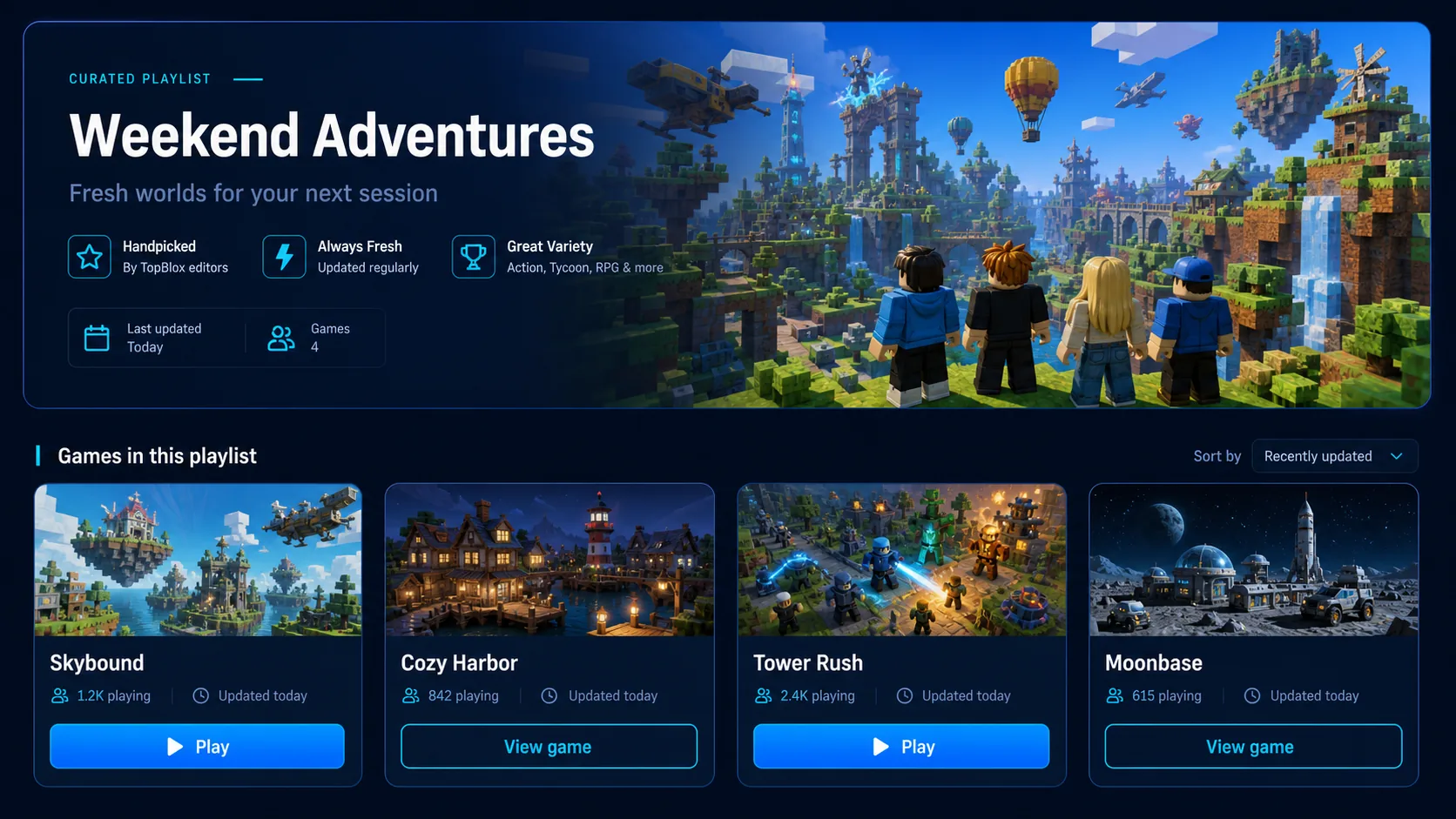
TopBlox custom playlist organization dashboard showing sorted Roblox games

3 Simple Steps to a Tidy Roblox Library

Step 1

Install TopBlox on Overwolf

Download TopBlox free from the Overwolf Appstore. It links directly with your local PC client without needing passwords.

Step 2

Create Themed Folders

Click “New Playlist” and create folders like “Multiplayer Friday”, “Hardcore Obbies”, or “Chill Building”. Drag and drop your favorite games directly into each collection.

Step 3

Share with Your Squad

Click “Export Share Code” and drop the generated link in your Discord server. When your friends open the link in TopBlox, the entire playlist syncs into their game in one click.

Frequently Asked Questions

Everything You Need to Know

Can I organize my Roblox games into folders without third-party tools?

No. Roblox natively only offers a single 'Favorites' tab that dumps all your saved games into a chronological list without folder support or custom sorting. You need a companion tool like TopBlox to create folders.

Can my friends open the playlists I create?

Yes. When you create a custom folder in TopBlox, you can export a share code. Your friends can paste that code into TopBlox to instantly sync the exact same collection on their PC.

Connected Intelligence

Related Guides & Tools

All Guides →
Ready to Upgrade Your Gameplay?

Experience the Official In-Game Overlay

Join thousands of PC gamers using SY DEV LABS tools on Overwolf. Free, lightweight, and engineered for high-performance gaming.