SY DEV LABS
Tutorial GuideZero Manual HotkeysHardware Accelerated1080p 60fps LocalStorage Quota Controls

How to Auto-Record Overwatch 2 Highlights on PC

Every gamer knows the pain of pulling off an incredible 5k clutch, only to realize they forgot to press their clipping hotkey. Learn how to configure automated, event-based clip capture with zero framerate drops.

Get Auto Recorder Free on Overwolf
Windows 10 / 11 Compatible
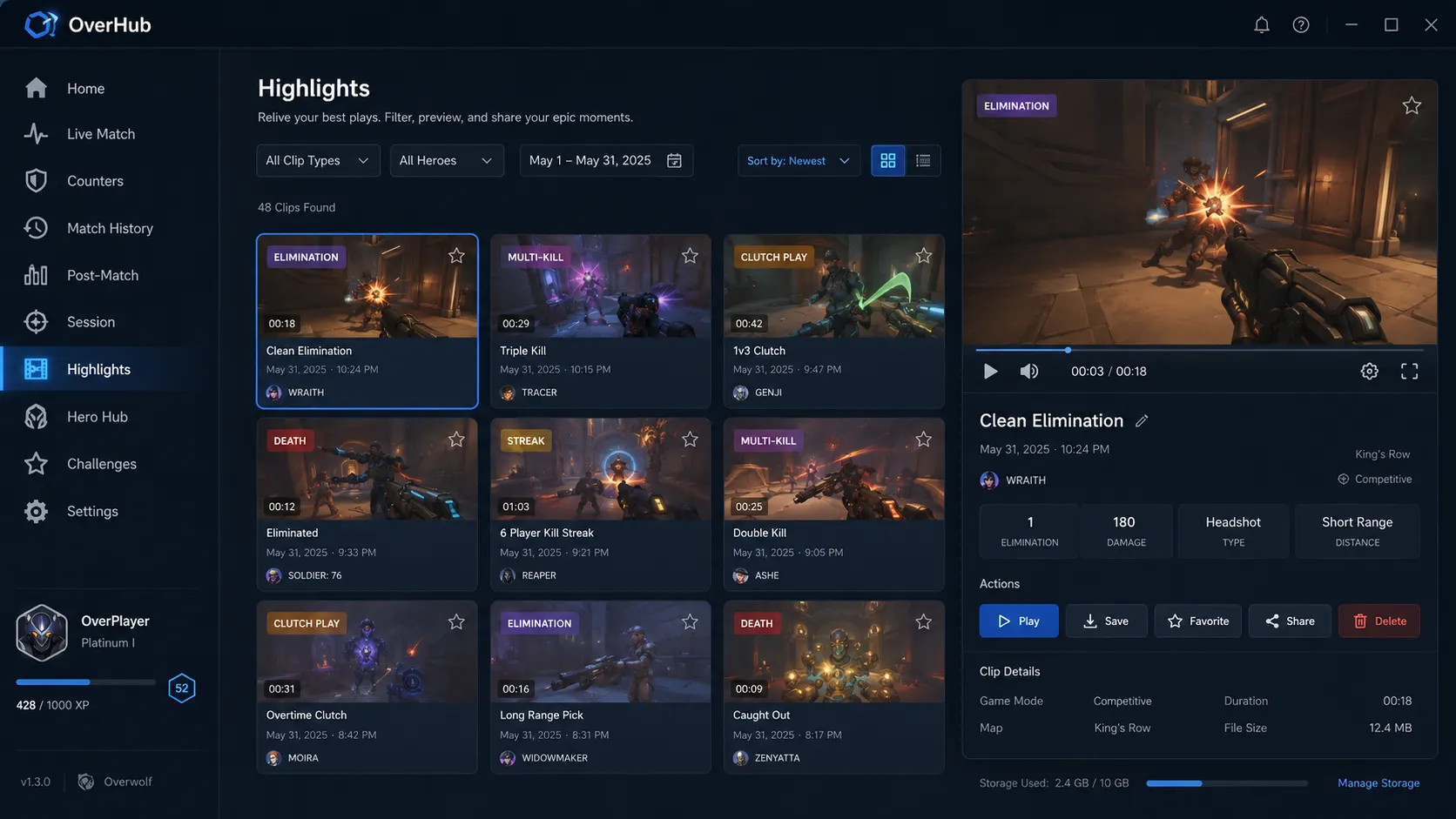
OverHub automatic video highlight recorder dashboard showing saved Overwatch 2 match clips

Manual Clipping vs. Event-Driven Capture

Manual Clipping (ShadowPlay / OBS Replay Buffer)

Requires you to remember to hit Alt+F10 mid-game immediately after a fight. If you are focused on the next objective push, you forget—and the play is gone forever.

Automated Event Capture (OverHub)

OverHub monitors the official Overwatch 2 game state. The moment a multi-kill, ultimate shutdown, or clutch elimination registers, the preceding 20 seconds are automatically saved to your hard drive.

Learn More About the Feature

Read the full specifications on our Auto Highlights Feature Page, including custom bitrate settings, folder directory configurations, and Discord export tools.

Frequently Asked Questions

Everything You Need to Know

Do I need an Nvidia graphics card for automatic highlight recording?

No. OverHub supports Nvidia NVENC, AMD AMF, and Intel QuickSync hardware encoders. As long as your GPU supports hardware encoding (almost all cards from the last 8 years), you get zero-lag clipping.

Will recording fills up my SSD storage space?

You can configure an auto-cleanup quota (e.g., maximum 20 GB). When the limit is reached, OverHub automatically purges the oldest unpinned clips so your drive never runs out of space.

Connected Intelligence

Related Guides & Tools

All Guides →
Ready to Upgrade Your Gameplay?

Experience the Official In-Game Overlay

Join thousands of PC gamers using SY DEV LABS tools on Overwolf. Free, lightweight, and engineered for high-performance gaming.