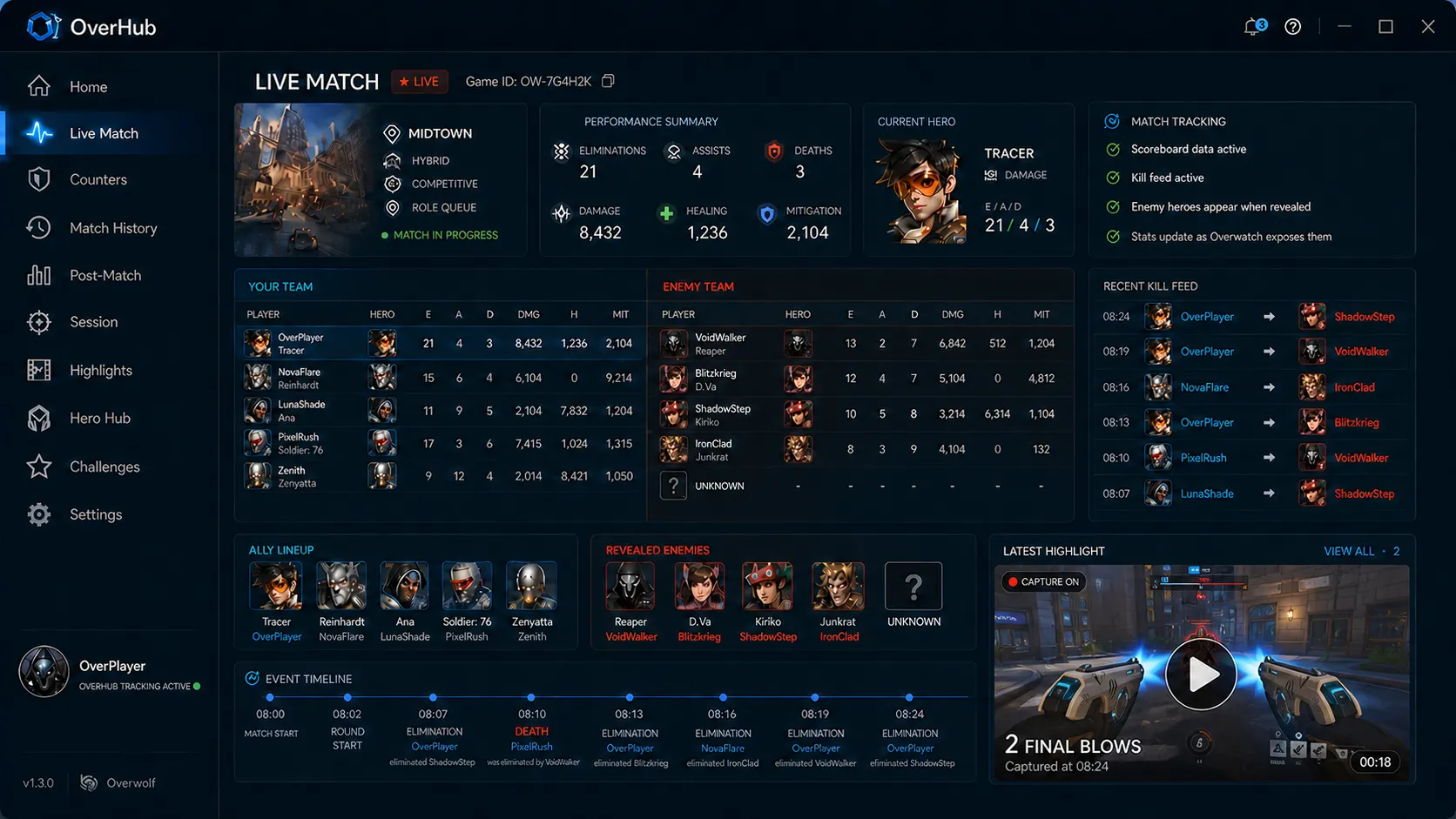
The 3-Minute Setup Walkthrough
Step 1
Install OverHub from Overwolf
Head to the official Overwolf Appstore and search for OverHub. Click install—it sets up automatically in less than 30 seconds with no complex configuration wizards.
Step 2
Configure Your Screen Positioning & Opacity
Open OverHub settings and choose where you want your stats widget anchored (top-right corner is standard for competitive players). Set the opacity to 80% so game elements behind it remain visible.
Step 3
Play and Toggle with Ctrl+X
Jump into any Overwatch 2 match. The tracker automatically wakes up when combat begins and feeds live telemetry. Press Ctrl+X to expand or dismiss the detailed scoreboard.
Understanding The Key Metrics
Check out our deep dive in the Live Match Tracker Feature Page to see how contextual DPM and ultimate economy calculations help you make smarter mid-fight calls.